

최신Linux Foundation Certified Kubernetes Security Specialist (CKS) - CKS무료샘플문제
문제1
SIMULATION
Enable audit logs in the cluster, To Do so, enable the log backend, and ensure that
1. logs are stored at /var/log/kubernetes-logs.txt.
2. Log files are retained for 12 days.
3. at maximum, a number of 8 old audit logs files are retained.
4. set the maximum size before getting rotated to 200MB
Edit and extend the basic policy to log:
1. namespaces changes at RequestResponse
2. Log the request body of secrets changes in the namespace kube-system.
3. Log all other resources in core and extensions at the Request level.
4. Log "pods/portforward", "services/proxy" at Metadata level.
5. Omit the Stage RequestReceived All other requests at the Metadata level
SIMULATION
Enable audit logs in the cluster, To Do so, enable the log backend, and ensure that
1. logs are stored at /var/log/kubernetes-logs.txt.
2. Log files are retained for 12 days.
3. at maximum, a number of 8 old audit logs files are retained.
4. set the maximum size before getting rotated to 200MB
Edit and extend the basic policy to log:
1. namespaces changes at RequestResponse
2. Log the request body of secrets changes in the namespace kube-system.
3. Log all other resources in core and extensions at the Request level.
4. Log "pods/portforward", "services/proxy" at Metadata level.
5. Omit the Stage RequestReceived All other requests at the Metadata level
정답:
Kubernetes auditing provides a security-relevant chronological set of records about a cluster. Kube-apiserver performs auditing. Each request on each stage of its execution generates an event, which is then pre-processed according to a certain policy and written to a backend. The policy determines what's recorded and the backends persist the records.
You might want to configure the audit log as part of compliance with the CIS (Center for Internet Security) Kubernetes Benchmark controls.
The audit log can be enabled by default using the following configuration in cluster.yml:
services:
kube-api:
audit_log:
enabled: true
When the audit log is enabled, you should be able to see the default values at /etc/kubernetes/audit-policy.yaml The log backend writes audit events to a file in JSONlines format. You can configure the log audit backend using the following kube-apiserver flags:
--audit-log-path specifies the log file path that log backend uses to write audit events. Not specifying this flag disables log backend. - means standard out
--audit-log-maxage defined the maximum number of days to retain old audit log files
--audit-log-maxbackup defines the maximum number of audit log files to retain
--audit-log-maxsize defines the maximum size in megabytes of the audit log file before it gets rotated If your cluster's control plane runs the kube-apiserver as a Pod, remember to mount the hostPath to the location of the policy file and log file, so that audit records are persisted. For example:
--audit-policy-file=/etc/kubernetes/audit-policy.yaml \
--audit-log-path=/var/log/audit.log
You might want to configure the audit log as part of compliance with the CIS (Center for Internet Security) Kubernetes Benchmark controls.
The audit log can be enabled by default using the following configuration in cluster.yml:
services:
kube-api:
audit_log:
enabled: true
When the audit log is enabled, you should be able to see the default values at /etc/kubernetes/audit-policy.yaml The log backend writes audit events to a file in JSONlines format. You can configure the log audit backend using the following kube-apiserver flags:
--audit-log-path specifies the log file path that log backend uses to write audit events. Not specifying this flag disables log backend. - means standard out
--audit-log-maxage defined the maximum number of days to retain old audit log files
--audit-log-maxbackup defines the maximum number of audit log files to retain
--audit-log-maxsize defines the maximum size in megabytes of the audit log file before it gets rotated If your cluster's control plane runs the kube-apiserver as a Pod, remember to mount the hostPath to the location of the policy file and log file, so that audit records are persisted. For example:
--audit-policy-file=/etc/kubernetes/audit-policy.yaml \
--audit-log-path=/var/log/audit.log
문제2
SIMULATION
Context:
Cluster: prod
Master node: master1
Worker node: worker1
You can switch the cluster/configuration context using the following command:
[desk@cli] $ kubectl config use-context prod
Task:
Analyse and edit the given Dockerfile (based on the ubuntu:18:04 image)
/home/cert_masters/Dockerfile fixing two instructions present in the file being prominent security/best-practice issues.
Analyse and edit the given manifest file
/home/cert_masters/mydeployment.yaml fixing two fields present in the file being prominent security/best-practice issues.
Note: Don't add or remove configuration settings; only modify the existing configuration settings, so that two configuration settings each are no longer security/best-practice concerns.
Should you need an unprivileged user for any of the tasks, use user nobody with user id 65535
SIMULATION
Context:
Cluster: prod
Master node: master1
Worker node: worker1
You can switch the cluster/configuration context using the following command:
[desk@cli] $ kubectl config use-context prod
Task:
Analyse and edit the given Dockerfile (based on the ubuntu:18:04 image)
/home/cert_masters/Dockerfile fixing two instructions present in the file being prominent security/best-practice issues.
Analyse and edit the given manifest file
/home/cert_masters/mydeployment.yaml fixing two fields present in the file being prominent security/best-practice issues.
Note: Don't add or remove configuration settings; only modify the existing configuration settings, so that two configuration settings each are no longer security/best-practice concerns.
Should you need an unprivileged user for any of the tasks, use user nobody with user id 65535
정답:
See the Explanation belowExplanation:
1. For Dockerfile: Fix the image version & user name in Dockerfile
2. For mydeployment.yaml : Fix security contexts
Explanation:
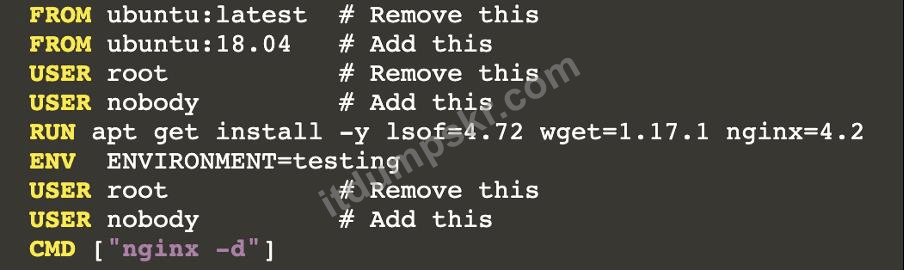
[desk@cli] $ vim /home/cert_masters/Dockerfile
FROM ubuntu:latest # Remove this
FROM ubuntu:18.04 # Add this
USER root # Remove this
USER nobody # Add this
RUN apt get install -y lsof=4.72 wget=1.17.1 nginx=4.2
ENV ENVIRONMENT=testing
USER root # Remove this
USER nobody # Add this
CMD ["nginx -d"]
[desk@cli] $ vim /home/cert_masters/mydeployment.yaml
apiVersion: apps/v1
kind: Deployment
metadata:
creationTimestamp: null
labels:
app: kafka
name: kafka
spec:
replicas: 1
selector:
matchLabels:
app: kafka
strategy: {}
template:
metadata:
creationTimestamp: null
labels:
app: kafka
spec:
containers:
- image: bitnami/kafka
name: kafka
volumeMounts:
- name: kafka-vol
mountPath: /var/lib/kafka
securityContext:
{"capabilities":{"add":["NET_ADMIN"],"drop":["all"]},"privileged": True,"readOnlyRootFilesystem": False, "runAsUser": 65535} # Delete This
{"capabilities":{"add":["NET_ADMIN"],"drop":["all"]},"privileged": False,"readOnlyRootFilesystem": True, "runAsUser": 65535} # Add This resources: {} volumes:
- name: kafka-vol
emptyDir: {}
status: {}
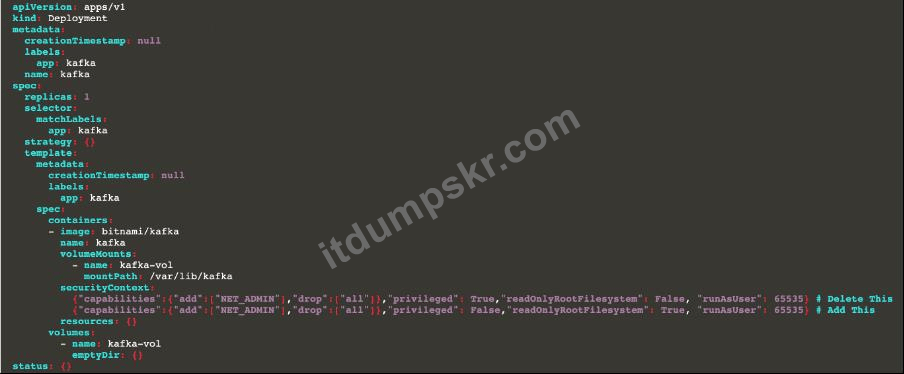
Pictorial View:
[desk@cli] $ vim /home/cert_masters/mydeployment.yaml
1. For Dockerfile: Fix the image version & user name in Dockerfile
2. For mydeployment.yaml : Fix security contexts
Explanation:
[desk@cli] $ vim /home/cert_masters/Dockerfile
FROM ubuntu:latest # Remove this
FROM ubuntu:18.04 # Add this
USER root # Remove this
USER nobody # Add this
RUN apt get install -y lsof=4.72 wget=1.17.1 nginx=4.2
ENV ENVIRONMENT=testing
USER root # Remove this
USER nobody # Add this
CMD ["nginx -d"]
[desk@cli] $ vim /home/cert_masters/mydeployment.yaml
apiVersion: apps/v1
kind: Deployment
metadata:
creationTimestamp: null
labels:
app: kafka
name: kafka
spec:
replicas: 1
selector:
matchLabels:
app: kafka
strategy: {}
template:
metadata:
creationTimestamp: null
labels:
app: kafka
spec:
containers:
- image: bitnami/kafka
name: kafka
volumeMounts:
- name: kafka-vol
mountPath: /var/lib/kafka
securityContext:
{"capabilities":{"add":["NET_ADMIN"],"drop":["all"]},"privileged": True,"readOnlyRootFilesystem": False, "runAsUser": 65535} # Delete This
{"capabilities":{"add":["NET_ADMIN"],"drop":["all"]},"privileged": False,"readOnlyRootFilesystem": True, "runAsUser": 65535} # Add This resources: {} volumes:
- name: kafka-vol
emptyDir: {}
status: {}
Pictorial View:
[desk@cli] $ vim /home/cert_masters/mydeployment.yaml
문제3
SIMULATION
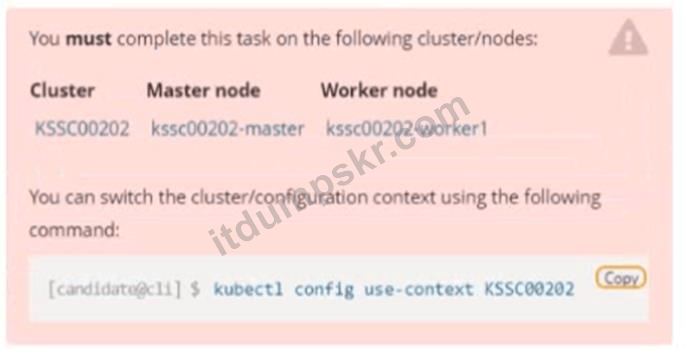
Context
A container image scanner is set up on the cluster, but it's not yet fully integrated into the cluster s configuration. When complete, the container image scanner shall scan for and reject the use of vulnerable images.
Task

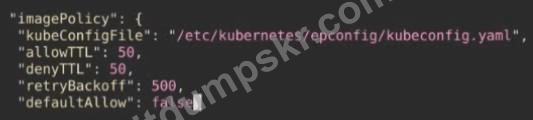
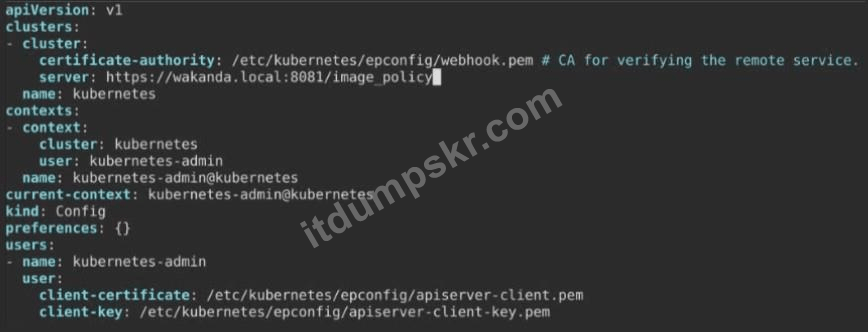
Given an incomplete configuration in directory /etc/kubernetes/epconfig and a functional container image scanner with HTTPS endpoint https://wakanda.local:8081 /image_policy :
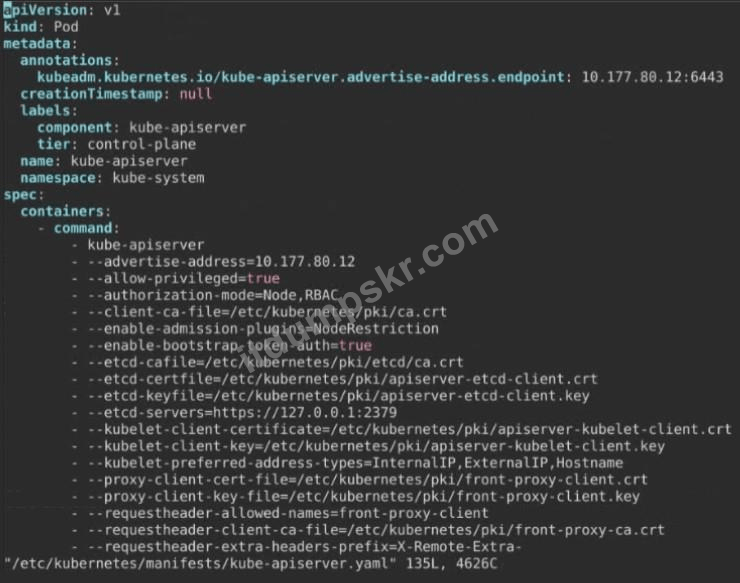
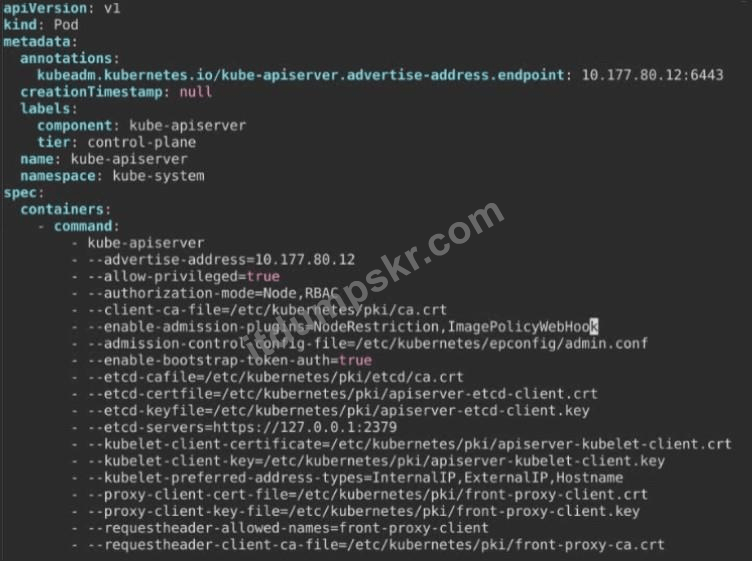
1. Enable the necessary plugins to create an image policy
2. Validate the control configuration and change it to an implicit deny
3. Edit the configuration to point to the provided HTTPS endpoint correctly Finally, test if the configuration is working by trying to deploy the vulnerable resource /root/KSSC00202/vulnerable-resource.yml.

SIMULATION
Context
A container image scanner is set up on the cluster, but it's not yet fully integrated into the cluster s configuration. When complete, the container image scanner shall scan for and reject the use of vulnerable images.
Task
Given an incomplete configuration in directory /etc/kubernetes/epconfig and a functional container image scanner with HTTPS endpoint https://wakanda.local:8081 /image_policy :
1. Enable the necessary plugins to create an image policy
2. Validate the control configuration and change it to an implicit deny
3. Edit the configuration to point to the provided HTTPS endpoint correctly Finally, test if the configuration is working by trying to deploy the vulnerable resource /root/KSSC00202/vulnerable-resource.yml.
정답:
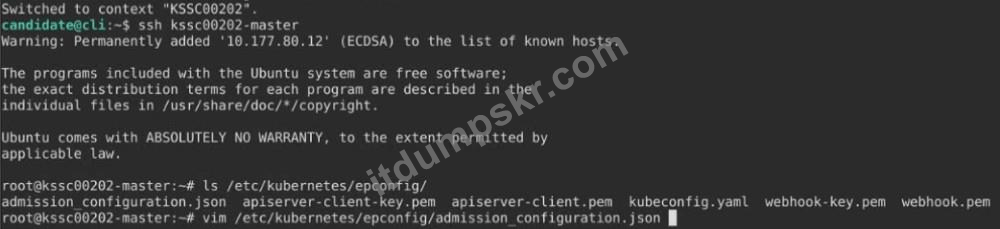
See the Explanation belowExplanation:



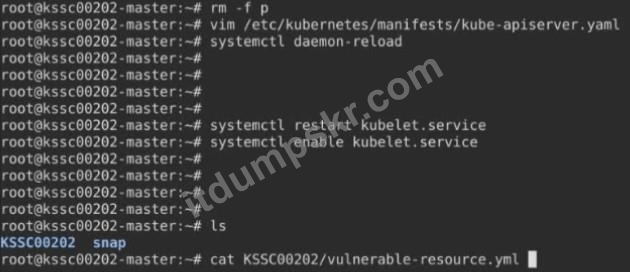
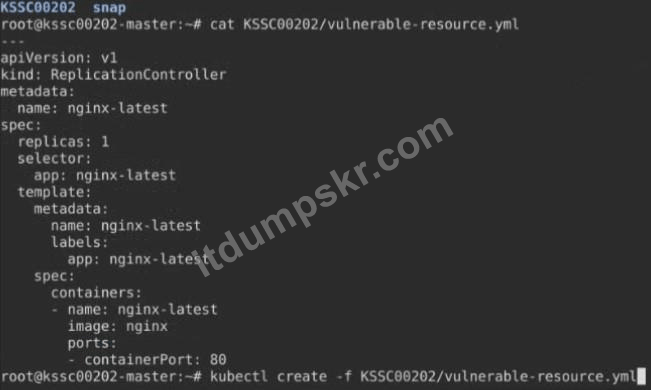
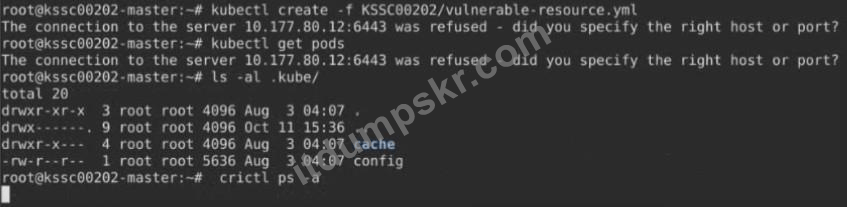
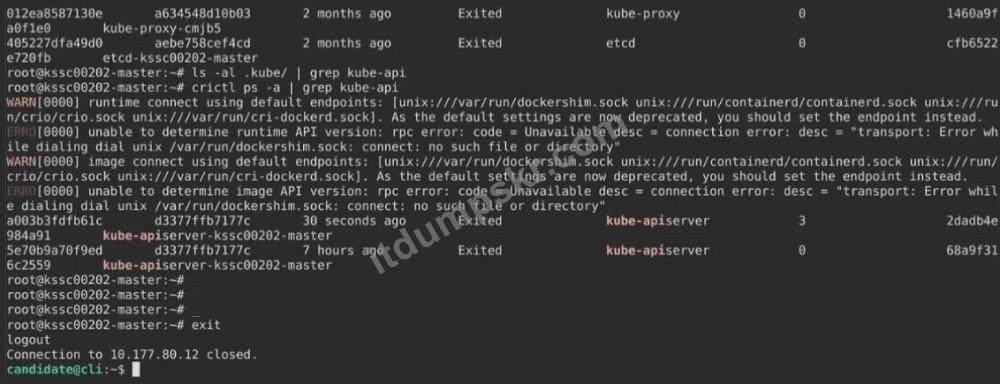
문제4
SIMULATION
Create a network policy named allow-np, that allows pod in the namespace staging to connect to port 80 of other pods in the same namespace.
Ensure that Network Policy:-
1. Does not allow access to pod not listening on port 80.
2. Does not allow access from Pods, not in namespace staging.
SIMULATION
Create a network policy named allow-np, that allows pod in the namespace staging to connect to port 80 of other pods in the same namespace.
Ensure that Network Policy:-
1. Does not allow access to pod not listening on port 80.
2. Does not allow access from Pods, not in namespace staging.
정답:
See the Explanation belowExplanation:
apiVersion: networking.k8s.io/v1
kind: NetworkPolicy
metadata:
name: network-policy
spec:
podSelector: {} #selects all the pods in the namespace deployed
policyTypes:
- Ingress
ingress:
- ports: #in input traffic allowed only through 80 port only
- protocol: TCP
port: 80
apiVersion: networking.k8s.io/v1
kind: NetworkPolicy
metadata:
name: network-policy
spec:
podSelector: {} #selects all the pods in the namespace deployed
policyTypes:
- Ingress
ingress:
- ports: #in input traffic allowed only through 80 port only
- protocol: TCP
port: 80
문제5
SIMULATION
You can switch the cluster/configuration context using the following command:
[desk@cli] $ kubectl config use-context prod-account
Context:
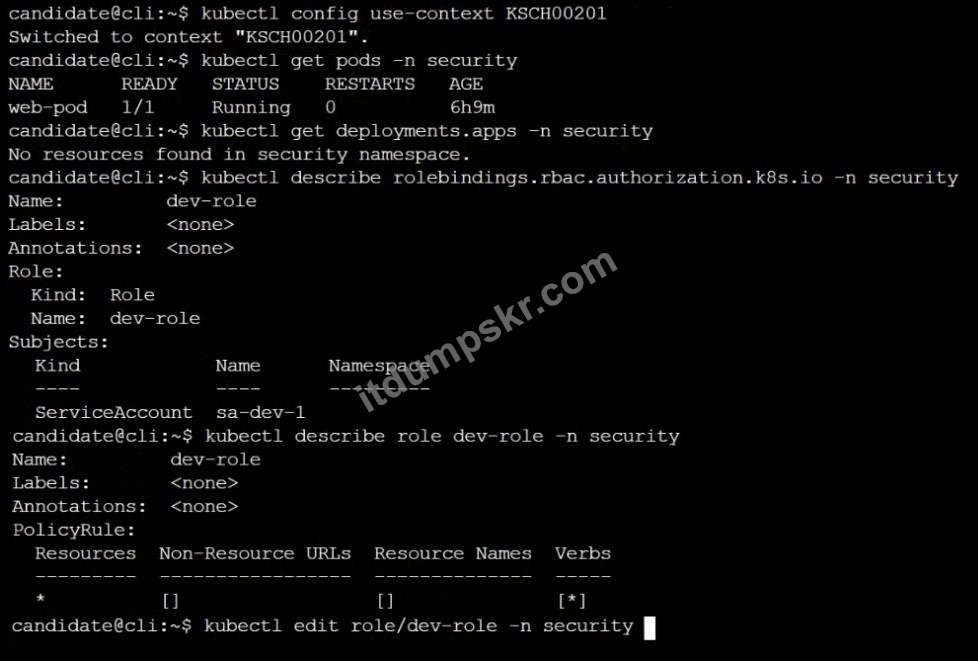
A Role bound to a Pod's ServiceAccount grants overly permissive permissions. Complete the following tasks to reduce the set of permissions.
Task:
Given an existing Pod named web-pod running in the namespace database.
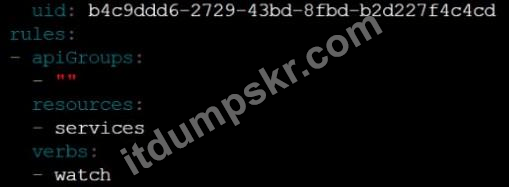
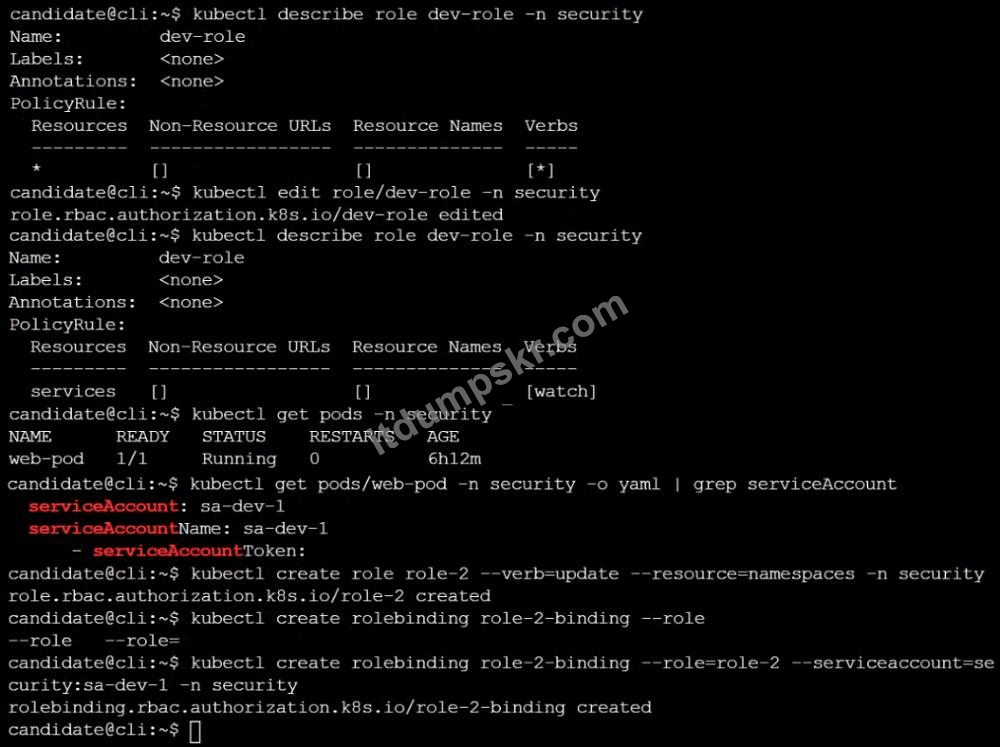
1. Edit the existing Role bound to the Pod's ServiceAccount test-sa to only allow performing get operations, only on resources of type Pods.
2. Create a new Role named test-role-2 in the namespace database, which only allows performing update operations, only on resources of type statuefulsets.
3. Create a new RoleBinding named test-role-2-bind binding the newly created Role to the Pod's ServiceAccount.
Note: Don't delete the existing RoleBinding.
SIMULATION
You can switch the cluster/configuration context using the following command:
[desk@cli] $ kubectl config use-context prod-account
Context:
A Role bound to a Pod's ServiceAccount grants overly permissive permissions. Complete the following tasks to reduce the set of permissions.
Task:
Given an existing Pod named web-pod running in the namespace database.
1. Edit the existing Role bound to the Pod's ServiceAccount test-sa to only allow performing get operations, only on resources of type Pods.
2. Create a new Role named test-role-2 in the namespace database, which only allows performing update operations, only on resources of type statuefulsets.
3. Create a new RoleBinding named test-role-2-bind binding the newly created Role to the Pod's ServiceAccount.
Note: Don't delete the existing RoleBinding.
정답:
See the Explanation below
Explanation:
Explanation:
문제6
SIMULATION
Documentation dockerd
You must connect to the correct host . Failure to do so may result in a zero score.
[candidate@base] $ ssh cks000037
Task
Perform the following tasks to secure the cluster node cks000037 :
Remove user developer from the docker group.
Do not remove the user from any other group.
Reconfigure and restart the Docker daemon to ensure that the socket
file located at /var/run/docker.sock is owned by the group root.
Re-configure and restart the Docker daemon to ensure it does not listen on any TCP port.
After completing your work, ensure the Kubernetes cluster is healthy.
SIMULATION
Documentation dockerd
You must connect to the correct host . Failure to do so may result in a zero score.
[candidate@base] $ ssh cks000037
Task
Perform the following tasks to secure the cluster node cks000037 :
Remove user developer from the docker group.
Do not remove the user from any other group.
Reconfigure and restart the Docker daemon to ensure that the socket
file located at /var/run/docker.sock is owned by the group root.
Re-configure and restart the Docker daemon to ensure it does not listen on any TCP port.
After completing your work, ensure the Kubernetes cluster is healthy.
정답:
See the Explanation below for complete solution
Explanation:
1) Connect to the correct host
ssh cks000037
sudo -i
2) Remove user developer from the docker group ONLY
2.1 Verify current groups (optional but fast)
id developer
2.2 Remove ONLY from docker group
gpasswd -d developer docker
2.3 Verify removal
id developer
✅ docker should not appear; other groups must remain.
3) Reconfigure Docker to secure the socket and disable TCP
Docker config file:
vi /etc/docker/daemon.json
3.1 Set socket group to root and disable TCP listeners
Ensure the file contains exactly these relevant settings (merge with existing JSON if present):
{
"group": "root",
"hosts": ["unix:///var/run/docker.sock"]
}
Important:
"group": "root" → docker.sock owned by group root
"hosts" includes ONLY the unix socket (no tcp://)
If the file already exists with other keys, add/adjust only these keys and keep valid JSON (commas!).
Save and exit:
:wq
4) Restart Docker daemon
systemctl daemon-reload
systemctl restart docker
systemctl status docker --no-pager
5) Verify Docker socket ownership and permissions
ls -l /var/run/docker.sock
Expected:
srw-rw---- 1 root root ...
✅ Owner: root
✅ Group: root
6) Verify Docker is NOT listening on TCP
ss -lntp | grep docker
Expected:
No output (or nothing bound to TCP by dockerd)
Optional double-check:
ps aux | grep dockerd | grep -v grep
Ensure no -H tcp://... flags.
7) Ensure Kubernetes cluster is healthy
7.1 Check node and pods
export KUBECONFIG=/etc/kubernetes/admin.conf
kubectl get nodes
kubectl get pods -A
All nodes should be Ready, core pods Running.
Explanation:
1) Connect to the correct host
ssh cks000037
sudo -i
2) Remove user developer from the docker group ONLY
2.1 Verify current groups (optional but fast)
id developer
2.2 Remove ONLY from docker group
gpasswd -d developer docker
2.3 Verify removal
id developer
✅ docker should not appear; other groups must remain.
3) Reconfigure Docker to secure the socket and disable TCP
Docker config file:
vi /etc/docker/daemon.json
3.1 Set socket group to root and disable TCP listeners
Ensure the file contains exactly these relevant settings (merge with existing JSON if present):
{
"group": "root",
"hosts": ["unix:///var/run/docker.sock"]
}
Important:
"group": "root" → docker.sock owned by group root
"hosts" includes ONLY the unix socket (no tcp://)
If the file already exists with other keys, add/adjust only these keys and keep valid JSON (commas!).
Save and exit:
:wq
4) Restart Docker daemon
systemctl daemon-reload
systemctl restart docker
systemctl status docker --no-pager
5) Verify Docker socket ownership and permissions
ls -l /var/run/docker.sock
Expected:
srw-rw---- 1 root root ...
✅ Owner: root
✅ Group: root
6) Verify Docker is NOT listening on TCP
ss -lntp | grep docker
Expected:
No output (or nothing bound to TCP by dockerd)
Optional double-check:
ps aux | grep dockerd | grep -v grep
Ensure no -H tcp://... flags.
7) Ensure Kubernetes cluster is healthy
7.1 Check node and pods
export KUBECONFIG=/etc/kubernetes/admin.conf
kubectl get nodes
kubectl get pods -A
All nodes should be Ready, core pods Running.
문제7
SIMULATION
Create a new ServiceAccount named backend-sa in the existing namespace default, which has the capability to list the pods inside the namespace default.
Create a new Pod named backend-pod in the namespace default, mount the newly created sa backend-sa to the pod, and Verify that the pod is able to list pods.
Ensure that the Pod is running.
SIMULATION
Create a new ServiceAccount named backend-sa in the existing namespace default, which has the capability to list the pods inside the namespace default.
Create a new Pod named backend-pod in the namespace default, mount the newly created sa backend-sa to the pod, and Verify that the pod is able to list pods.
Ensure that the Pod is running.
정답:
A service account provides an identity for processes that run in a Pod.
When you (a human) access the cluster (for example, using kubectl), you are authenticated by the apiserver as a particular User Account (currently this is usually admin, unless your cluster administrator has customized your cluster). Processes in containers inside pods can also contact the apiserver. When they do, they are authenticated as a particular Service Account (for example, default).
When you create a pod, if you do not specify a service account, it is automatically assigned the default service account in the same namespace. If you get the raw json or yaml for a pod you have created (for example, kubectl get pods/<podname> -o yaml), you can see the spec.serviceAccountName field has been automatically set.
You can access the API from inside a pod using automatically mounted service account credentials, as described in Accessing the Cluster. The API permissions of the service account depend on the authorization plugin and policy in use.
In version 1.6+, you can opt out of automounting API credentials for a service account by setting automountServiceAccountToken: false on the service account:
apiVersion: v1
kind: ServiceAccount
metadata:
name: build-robot
automountServiceAccountToken: false
...
In version 1.6+, you can also opt out of automounting API credentials for a particular pod:
apiVersion: v1
kind: Pod
metadata:
name: my-pod
spec:
serviceAccountName: build-robot
automountServiceAccountToken: false
...
The pod spec takes precedence over the service account if both specify a automountServiceAccountToken value.
When you (a human) access the cluster (for example, using kubectl), you are authenticated by the apiserver as a particular User Account (currently this is usually admin, unless your cluster administrator has customized your cluster). Processes in containers inside pods can also contact the apiserver. When they do, they are authenticated as a particular Service Account (for example, default).
When you create a pod, if you do not specify a service account, it is automatically assigned the default service account in the same namespace. If you get the raw json or yaml for a pod you have created (for example, kubectl get pods/<podname> -o yaml), you can see the spec.serviceAccountName field has been automatically set.
You can access the API from inside a pod using automatically mounted service account credentials, as described in Accessing the Cluster. The API permissions of the service account depend on the authorization plugin and policy in use.
In version 1.6+, you can opt out of automounting API credentials for a service account by setting automountServiceAccountToken: false on the service account:
apiVersion: v1
kind: ServiceAccount
metadata:
name: build-robot
automountServiceAccountToken: false
...
In version 1.6+, you can also opt out of automounting API credentials for a particular pod:
apiVersion: v1
kind: Pod
metadata:
name: my-pod
spec:
serviceAccountName: build-robot
automountServiceAccountToken: false
...
The pod spec takes precedence over the service account if both specify a automountServiceAccountToken value.